 This button opens the Print dialog allowing you to select a printer, adjust its settings and print the drawings in your project, either to physical media or to a file e.g. PDF.
This button opens the Print dialog allowing you to select a printer, adjust its settings and print the drawings in your project, either to physical media or to a file e.g. PDF.
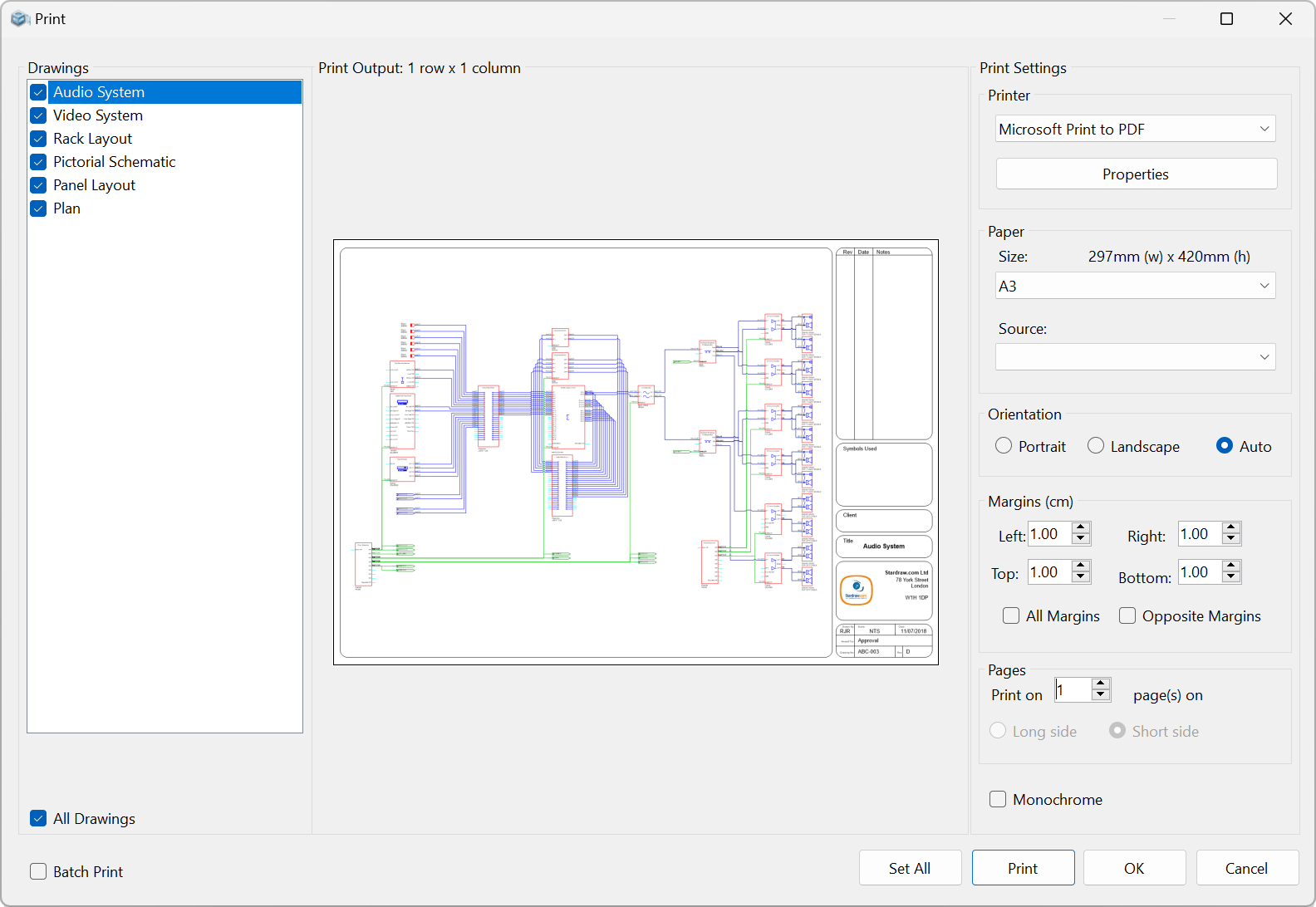
The Print dialog allows you to print one, some or all of the drawings in your project; checked drawings in the Drawings list will print.
The Print Output area in the middle of the dialog shows a preview of the drawing selected in the Drawings list and the Print Settings on the right show the settings specific to that drawing. Note: during printing, each drawing in your project can have different print settings, for example different drawings might need to print to different page sizes or orientations, but if you want all selected drawings to use some or all of the same settings, click on the Set All button; usually, for example, if you choose a new printer you will want to use Set All to make sure all drawings are output to that same printer.
To generate a PDF file select a PDF Writer from the list of printers. Windows 10 & 11 include a PDF Writer called Microsoft Print to PDF. For earlier versions of Windows, or as an alternative to Microsoft Print to PDF, there are many third-party PDF Writers; simply search online and pick one that meets your needs. Some are free, some aren't, and all have different features and capabilities so it is difficult to make a recommendation. Having said that, our experience with CutePDF shows it to be reliable and rich in features including, for example, the ability to define the quality (resolution) at which images (bitmaps) are rendered, and it is free.
By default, when printing to PDF each drawing is placed on its own page(s) in a single, multi-page PDF file; you will be asked to set a filename and location for the PDF file when you click on the Print button.If you want each drawing to be output to a separate PDF file check the Batch Print checkbox: when you print you will be asked for a new filename for each drawing being output to PDF.
When printing large drawings to PDF be sure to select an appropriate paper size; PDF Writers generally discard text that is too small to be read when output to a given page size, so if the text in your drawing is scaled to less than 1pt to fit on the chosen page size it may not appear in the PDF file. Therefore, if you would print a drawing to E-size or A1 to make things legible on a physical piece of paper, be sure to select that page size when outputting to PDF.
Printer: select from any printer installed in Windows and use the Properties button to adjust that printer's settings.
Paper: choose an appropriate paper size for your drawing; available paper sizes are determined by the printer you have selected. Even when generating a PDF file we recommend you choose the equivalent paper size for your drawing as you would for hardcopy output.
Orientation: allows you to select whether the print output will be in Portrait or Landscape mode. The default setting is "Auto" which means that drawings which are wider than they are tall will print in Landscape orientation, while those that are taller than they are wide will print in Portrait orientation. Note: when printing to 11" x 17" you should select the paper size "Tabloid" or "B-Size" but never "Ledger". All 3 of these paper sizes have the same overall dimensions, 11" x 17", but the "Ledger" paper size uniquely reports its long side first which means that the print driver will always output the drawing in the wrong orientation. For 11" x 17" always choose "Tabloid" or "B-Size".
Margins: defines the white space to leave between the extents of the drawing and the edges of the paper.
Pages: use this setting if you want to 'tile' the drawing across multiple pages. Choose the number of pages along the Long or Short side; the Print Output area will show a preview of the end result.
Monochrome: converts the print output to "black and white". More fully, native Stardraw objects like lines, polygons, text etc are changed to black, while images are converted to grayscale,
The Print Settings you define apply to the currently selected, previewed drawing. To apply the settings to all drawings in the project click on the Set All button and, in the dialog that is displayed, choose which specific settings to apply to all drawings, or choose to apply All Settings.
Set All Button: apply some or all of the current Print Settings to all drawings in the project.
Print Button: print the selected (checked) drawings.
OK Button: saves the current Print Settings, but does not Print.
Cancel Button: exit the Print Dialog without printing or saving the current Print Settings.
|
Other Commands: |
Menu: |
File > Print |
|
Shortcut: |
Ctrl+P |