 When you click on the Text button your cursor will
change to a caret
When you click on the Text button your cursor will
change to a caret  . Click on your document to define
where your text is to start and begin typing.
. Click on your document to define
where your text is to start and begin typing.When you click on the Text button your cursor will
change to a caret . Click on your document to define
where your text is to start and begin typing.
Using this tool you can create multiple line text; press Enter whenever you want to start a new line.
To edit an existing Text object, doubleclick on it.
To edit text in a Symbol, or text that is part of a Group, use the Unlock Cursor.
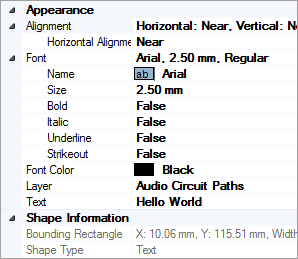 Horizontal Alignment:
choose from 'Near', 'Center' or 'Far'. For text that reads left
to right, i.e. most western script, Near is equivalent to 'Left Aligned'
and Far is equivalent to 'Right Aligned'
Horizontal Alignment:
choose from 'Near', 'Center' or 'Far'. For text that reads left
to right, i.e. most western script, Near is equivalent to 'Left Aligned'
and Far is equivalent to 'Right Aligned'
Font group: displays a summary of all the current Font values. Read-only: use the members of the Font group to set values.
Font Color: shows the current font color. Click on the value field to choose a new Color for the object.
Layer: shows the layer on which the object exists. Click on the value field to move the object to a new layer.
Text: displays the current Text of the object. Click and type to define a new text string.
The Shape Information collection is read-only and displays information about the currently selected object(s).
Text defaults are set in the Document Properties Grid | Drawing Defaults collection - use this to define default values for all Font properties and Font Color.
Other Commands: |
Menu: |
Drawing, Text |