Bookmarks
Bookmarks let a reader jump from one place in a report to another. A bookmark marks a report item as a navigation target; a Jump to bookmark action on another item brings the bookmarked item into focus when clicked in the Report Viewer. Use bookmarks in long reports — for example, to jump from a summary row at the top of an Equipment List to the detailed section for that Room further down.
To create a bookmark
- Select the report item you want to be the target of the jump — a TextBox, a group header, a Container, etc.
- In the Navigation section of its properties, set the Bookmark ID to a string that is unique within the report. This can be a static value, or an expression such as {Room} so that each instance of a repeating item gets its own bookmark.
To link to a bookmark
- Select the item the reader will click — TextBoxes, Images, Chart plots, and Table rows all support actions.
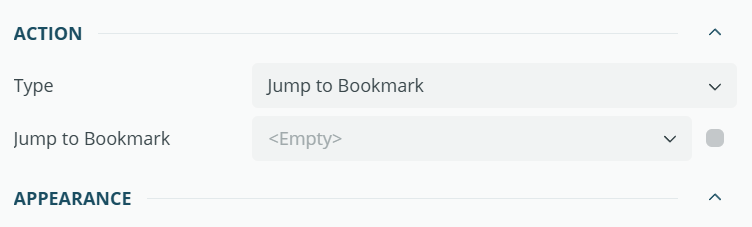
- In its Action property, choose Jump to bookmark.
- Enter the value or expression matching the target's Bookmark ID.
Note: When an expression is used for the Bookmark ID, make sure the expression on the linking item evaluates in a scope that produces the same value — for example, a group header's Room value matching the Bookmark ID of the detail section for that Room.
Bookmark navigation works when viewing the report in the Report Viewer; after following a bookmark you can return using the viewer's Backward button.
For further information on interactive features refer to the general ActiveReportsJS documentation.