Licensing for Stardraw Design 7.4 is based on the number of concurrent users, not machine installations. This means that you can install Stardraw Design 7.4 onto as many computers as you want.
To save your work and to print, the current computer must be licensed.
The licensing system is Cloud-based which means you can Take a license from the Cloud onto your current computer when you want to work with Stardraw Design 7.4. This makes it far easier for a licensee to work on different computers, and for organizations to share licenses between multiple users who might be in different places. You need to have an internet connection to perform license operations, i.e. to Take or Release a license, but you do not need an internet connection to work with a computer that is currently licensed; once licensed, a computer stays licensed, even when offline, until the license is released back to the Cloud.
Licenses are assigned to your registered account, which is identified by your registered email address. Multiple licenses can be assigned to the same account, and therefore email address, and for organizations with multiple licenses and/or users we recommend that all users sign in to Stardraw Design 7.4 using a common email address. In this way licenses can be shared across the organization and all users will have access to the same user preferences and custom data such as User Defined Products and Cable Presets (which are stored with the registered account).
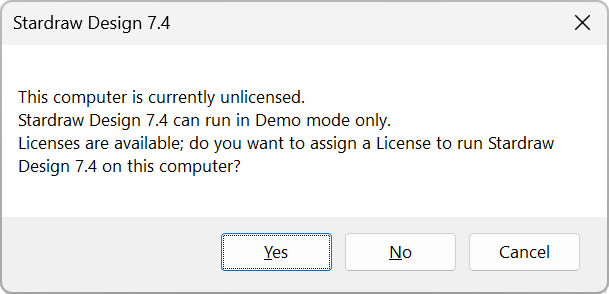
When you first run Stardraw Design 7.4 on a computer, or if the current computer is unlicensed, sign in using your registered email address and if one or more licenses are available for your use you will see the dialog below.
Click on Yes to see available licenses.
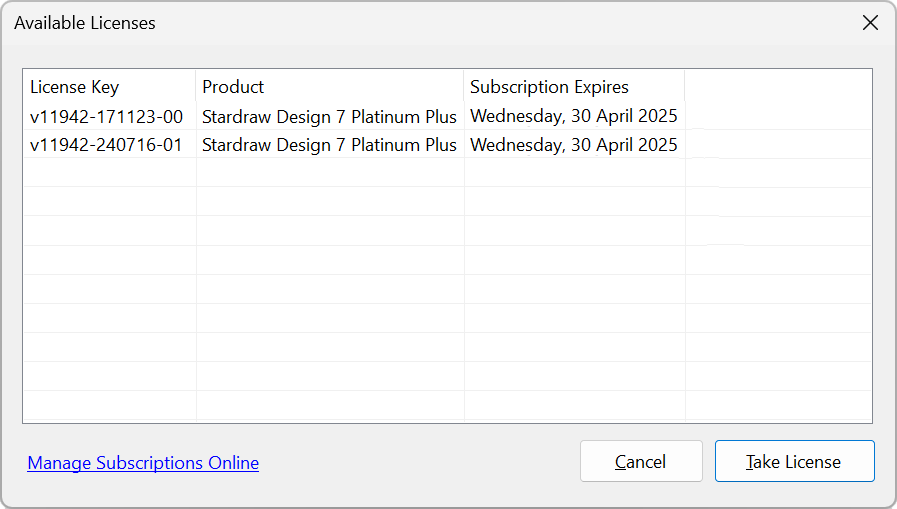
Select the license you want and click on Take License to license the current computer.
To release your license back into the Cloud pool choose:
Stardraw Design 7.4 will close when its license is released.
If you frequently change computers or if you have multiple users sharing licenses from a common pool it can be helpful to activate the Release License on Close option. When active, this option releases the license currently in use back to the Cloud when Stardraw Design 7.4 shuts down. This means that if the license is needed elsewhere it won't be 'stuck' on a computer that is shut down or not running Stardraw Design 7.4.
If a computer has automatically released its license using this option, it will automatically re-Take the same license the next time Stardraw Design 7.4 starts up, assuming the license is still available.
To activate this option select Tools | Personalization | Settings and check Release License on Close.
For users that access a single license on multiple computers, or for groups of multiple users that share a common login ID (email address) we recommend activating Release License on Close on every computer that is used to run Stardraw Design 7.4.
If you sign in to Stardraw Design 7.4 on an unlicensed computer and all your licenses are currently assigned to other computers you will see a dialog that identifies the Computer Name(s) of the computers that currently hold the license(s). You will need to release a license from a licensed computer, by going to that computer and releasing the license, before the license can be taken onto a different computer.
If it is impossible to release a license, e.g. you can't physically access the computer or it is not functioning, email techsupport@stardraw.com to request Remote Release of License. Include in your email your registered email address and the license ID and/or computer name from which to release the license.
If your computer does not have an internet connection, i.e. it's "offline", you can still work with Stardraw Design 7.4 so long as the computer was licensed the last time it was online; computers stay licensed until the license is Released. So, if the computer is licensed before you run Stardraw Design 7.4 when offline, it will be licensed, but you cannot Take (or Release) a license when offline.
Note, therefore, that if you have activated Release License on Close you will need to de-activate that option before closing Stardraw Design 7.4 (if online) and restarting it when offline.
When a license is Taken onto a computer, it is assigned using 3 criteria
If any one of those credentials is changed while the license is assigned - e.g. you sign into Windows using a different User Profile - then the license will not be available to the current user.
If you are unable to release a license, for example, you no longer have access to the computer on which the license is resident, please email techsupport@stardraw.com