|
Reference |
Designing a Client/Server Project |
|
|
The difference between a standalone project and a Client/Server one, is that Stardraw Control generates a server executable in addition to the Client executable.
To enable Client/Server feature within your project, simply open the Project Details and within the Server tab, select the Generate Client & Server Executables option.
When the Compile Executable option is next used, and you provide an appropriate license key, a single Server executable will be generated, along with the Client executable. The generated Client executable may be installed onto as many client PCs as your license allows.
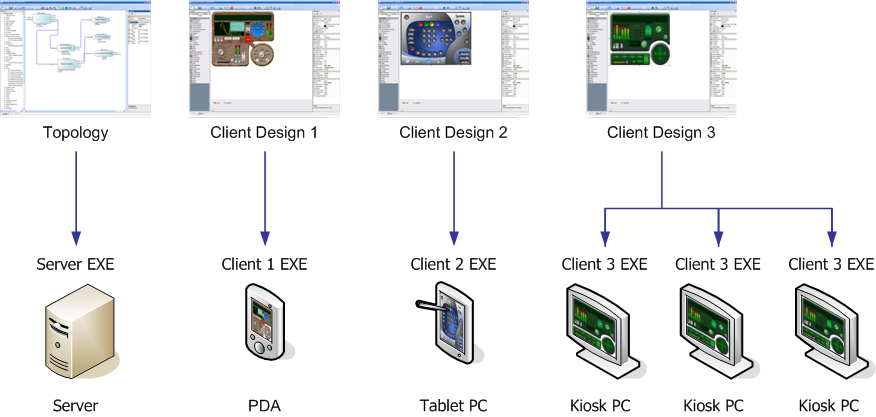
Within a Client/Server project you can also design different types of Client UI that connect to the same Server:
Multiple Client UI designs
For example, a classroom project might have two Client UI designs: one for the student and another for the teacher. For the student UI, the same Client executable could be installed onto 20 kiosk PCs, and the teacher UI could be installed onto a single tablet PC.
Tip
To decide whether your project requires more than one type of Client UI, you may wish to consider the following:
Do your users require different levels of control, or control over the different combinations of devices?
Does your client hardware differ significantly in form factor, operating system or screen resolution?
Do you require separate administrative control, or ability to monitor status of devices?
If the answer is Yes to any of the above, you should consider designing a separate Client UI that meets the requirements for each type of user in your installation.
Within a Client/Server project, the devices in your topology are common to each Client UI, that is changes in the topology or device configuration affect all Client UIs. Each Client UI can access all the available properties and methods of all devices in the topology.
It is down to the requirements of your design as to which devices are controlled by each Client UI, and to what degree of control you allow the operator.
To create a new Client UI design within your project, first select the Forms View, then from the Tools menu select Clients and click Add Client. A new Client workspace will be created and a new row of tabs will be displayed at the top of the Forms View, that shows existing Client design (Panels) and the new Client (Client 1).
The new Client workspace contains all of the same features as a standalone client, that is, you can add multiple Forms, panels, control, components and Actions, all of which are separate part of each Client.
Like you can copy parts of your design between different Forms, you can also copy controls, components and Actions between Clients. Within the Project Properties, for each client you can separately specify the Executable filename and folder, as well as the Startup Form.
When the Run option is used, Stardraw Control generates and runs the Client UI that is currently active in the Forms View. Further, the Client UI is generated as an in-memory standalone program: the Server executable itself is not created.
This allows you to test and debug each Client separately in standalone mode, and when you are confident that you can deploy your design, you can acquire a license key to generate the Client and Server executables.