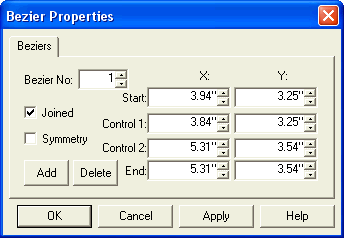
 The Beziers dialog gives you control over each individual
Bezier in the curernt selection. It
is shown when you have selected a single Bezier curve, or a single object
that is made up of multiple Beziers.
The Beziers dialog gives you control over each individual
Bezier in the curernt selection. It
is shown when you have selected a single Bezier curve, or a single object
that is made up of multiple Beziers.The Beziers dialog gives you control over each individual
Bezier in the curernt selection. It
is shown when you have selected a single Bezier curve, or a single object
that is made up of multiple Beziers.
The Start- End- and Control point values control the shape of the bezier. Use the spin controls to adjust them and see the effect they have.
Bezier No: if the selected object contains more than one bezier you can change the bezier number in this dialog to see the properties of each curve in the chain.
Joined: When you have more than one bezier and the "Joined" box is checked it means that the endpoint of one is the startpoint of the next, so changes that you make to the one will have an effect on the other.
Symmetry: If the "Symmetry" box is checked it means that control point 2 of the first bezier is affected by changes to control point 1 of the second. If you move the latter, an equal and opposite effect will be made on the former e.g. if you move control point 1 of the second bezier 1" to the right, control point 2 of the first will move 1" to the left.
